What a project is
A project is a cluster of work, such as a campaign, a client or a product, with exactly one agent in it.
A project is one cluster of work: a campaign, a client, a product, a part of the company. Each project has exactly one agent. You don’t pick from a roster, nothing routes your request to someone else, and there is no separate chat product beside it. You’re in Marketing, you talk to Marketing, and the work lands in Marketing.
The agent’s job is to finish work, not to plan it. A good answer is the post written and saved, the rows created or the file in the Library, followed by a short report of what changed. When it can’t finish, because an integration isn’t connected, an approval is needed or the data isn’t there, it tells you what’s blocking it and stops. It won’t hand you a list of steps to run yourself.
If something has its own people, its own files and its own accounts, it’s probably a project. Create one.
What a project holds
Channels and conversations
A channel is a room, not a folder. Every project starts with a channel called General, and you add more as the work splits up. Inside a channel, each conversation is one thread for one request and its follow-ups, between you, the project’s agent and anyone you bring in. When the agent replies, the reply shows up in your Inbox, so you don’t have to keep watching the thread. See Channels.
The Library
The project keeps everything its work produces: documents the agent wrote, files you uploaded, databases of rows and apps built on that data. The Library is designed for finding things again. It shows what you opened recently first, and you can filter by kind. See The Library.
Integrations
An integration is an account with an outside service that your organization, or you, connected once. A project doesn’t get every integration automatically. You choose which ones this project’s agent may use, and the rest stay off. See A project’s integrations.
Instructions and memory
Instructions are rules you write for the agent. It reads them on every reply and never changes them. Memory works the other way: the agent writes down what it learns while it works, and you correct anything it gets wrong. Both are in project settings under Advanced, on the Instructions and Memory tabs. See Instructions.
Skills
A skill is an approved playbook for how a job is done. When you attach a skill to a project, the agent can follow it by name in any conversation. A skill is guidance for the agent, not a second agent.
Scheduled actions
A scheduled action is an instruction the agent runs on a schedule, such as every Monday morning or on the first of the month. Each run opens a conversation in the channel you chose and posts its result there. You manage scheduled actions in project settings under Automations. They run on a schedule only. Nothing starts one when something happens elsewhere.
The project home page
Opening a project takes you to its home page. The home page has three sections: Who is here, Apps in this Project, and This week, with an Earlier group below it for older work.
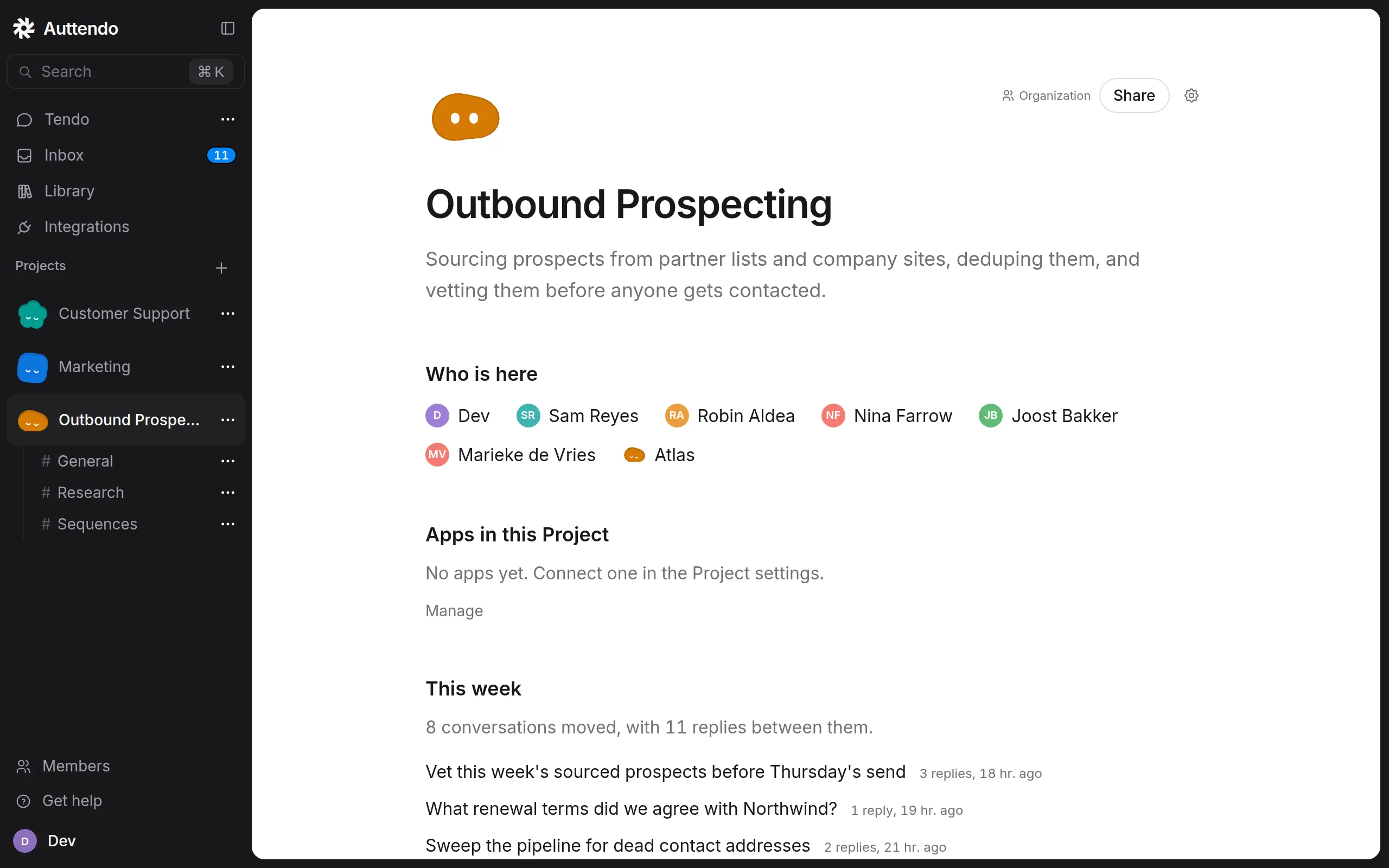
You can’t type to the agent on the home page because it has no composer. To start work, open a channel (General, if you haven’t made others) and type there. Share and the settings gear sit at the top of the page, next to the project’s orb.
Who is here
The Who is here panel lists the people who have access to the project, plus the project’s agent under its own name.

A new project’s agent gets a first name of its own, which anyone who can edit the project can change in project settings under Details. Details also holds the agent’s default model and reasoning effort, which apply to every future reply in the project.
Who can see a project
Every project is either Team-visible or Private. A Team-visible project shows the badge Everyone in the organization. A Private one shows Only people invited.
Being able to see a project doesn’t mean being able to work in it. Team-visible lets everyone in the organization view the project, not edit it. To let someone work in it, invite them through Share as a Viewer, Editor or Admin. Invitations are the only way to get access. There is no member list to add people to. If someone can’t open a project, send them a Share invitation with the right role. See Share a project.
Tendo is a project too
Tendo, your Personal Agent, is a project that belongs only to you. It has one member, it’s always private, and it has its own conversations, Library, integrations and memory. It works like any other project, and nothing you do there shows up in a shared one. See Tendo.
Related
- Create a project: set up a new project for a campaign, a client or a product.
- Channels: organize a project’s conversations into rooms.
- Share a project: invite people and choose their roles.
- Instructions: write the rules the agent follows on every reply.