Tendo, your own project
Tendo is the project only you can see, with one agent, your own integrations and a memory that follows you into every workspace.
Tendo is your own project. It has one agent, like every project, and nobody else can see what happens in it. Use it for the work that is yours rather than the team’s: drafts, questions, the things you would not put in a shared channel.
You have exactly one Tendo. It is not tied to a workspace: join a second one and the same Tendo is already there, with the same conversations and the same memory.
Find it
Select your Tendo row
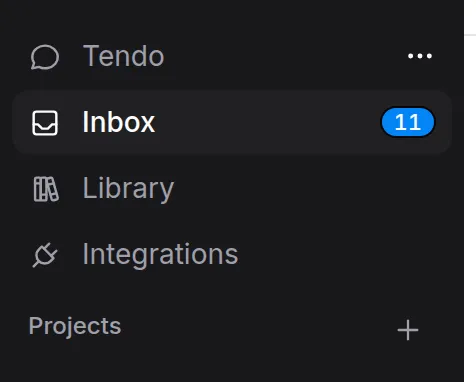
Your Tendo has its own row at the top of the sidebar, above Inbox and the projects you share with other people. The row carries the name you gave it, so it may not read “Tendo”.
Pick up where you left off
Selecting the row opens your most recent Tendo conversation, or a new one if you have none yet. While you are in Tendo, its channels open underneath the row.
Two other ways in:
- The command palette. Search for your agent’s name and choose Chat with followed by it.
- The composer on the workspace home. Whatever you send from there starts a new conversation in Tendo, and you land in it with the answer on its way.
The floating character, described below, is a fourth.
Rename it
You named your agent when you first signed in. You can change that name at any time; everything already in Tendo stays where it is.
Open Tendo settings
Right-click your Tendo row in the sidebar, or use the menu button that appears on it, and choose Settings.
Change the name in Details
On Details, type the new name. Details holds the name, the agent’s voice and the floating character; there is no model or colour to choose here. You pick the model per conversation.
How it differs from a shared project
Tendo works like any other project: conversations, channels, a Library for what the agent makes. What it lacks is other people, and a few things follow from that:
- It is always private. There is no visibility setting to change.
- There is nothing to invite. The only sharing control copies a link, and that link grants nobody access.
- It cannot be merged or archived. A merge is refused, and no archive control is offered.
- There is no Automations section. Tendo settings has Details, Integrations and Advanced.
- Your own integrations are on unless you switch them off. A shared project is the reverse: each integration starts off until someone switches it on.
Tendo spends the workspace’s credits, like any project. There is no separate plan for it.
Your own integrations
The accounts you connect for yourself are yours alone. Nobody else in the workspace can see or use them, and no shared project can reach them; shared projects work from the organization’s accounts.
You reach your own integrations from your account settings or from Tendo settings → Integrations. Both open the same directory. Integrations lists what you can connect, and Connecting an integration walks through it. For the shared side, see Integrations in a project.
What Tendo remembers
Tendo’s memory is personal memory. It lives on your account, not in the project, so:
- It follows you into every workspace you belong to.
- It stays private even in shared projects. Giving a colleague access to a project never gives them your personal memory.
- It survives deleting Tendo.
You can read and edit it in Tendo settings → Advanced → Memory. When the agent writes something down during a turn, a line under its reply says so, with Undo beside it.
Tendo has no instructions editor. A shared project has instructions; in Tendo you tell the agent how you want it to behave (“keep answers short”, “ask before you send anything”) and it keeps to that.
The floating character
The small character at the edge of the screen is a shortcut into Tendo, named after your agent. It has no conversation of its own and does not read the page it floats over.
- Move it by dragging it anywhere. It remembers where you left it.
- Send a quick message by clicking it. What you type there opens a new private conversation in Tendo.
- Dismiss it with the X. To bring it back, switch on Show floating character in Tendo settings → Details.
It hides itself while you are inside Tendo, where you are already talking to the same agent.
Talk to it
Spar lets you speak to your agent instead of typing. It is available in Tendo only; shared projects do not offer it. Nothing is recorded and no audio is kept. What you say lands in the conversation as ordinary messages, so the thread afterwards reads like one you typed.
Start over with a fresh Tendo
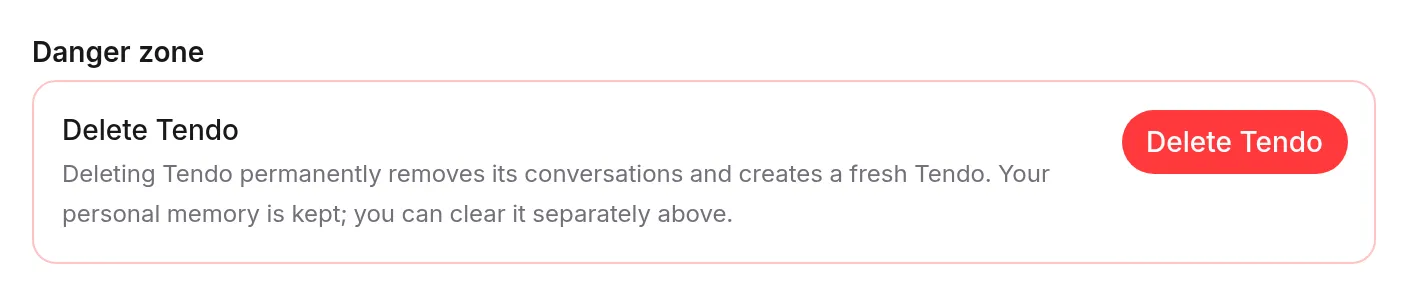
Delete Tendo when you want a clean slate. You never end up without one: a fresh Tendo replaces it straight away.
Open Tendo settings
Right-click your Tendo row in the sidebar, or use its menu button, and choose Settings.
Go to Advanced, then Danger
Open Advanced and switch to the Danger tab.
Press Delete Tendo
Find the Delete Tendo row and press the button. A notice tells you the new Tendo is ready.
Troubleshooting
I can’t share Tendo with a colleague
That is by design. Tendo stays private, and a copied link gives nobody access. Work you want to do together belongs in a shared project: create one and invite them there.
The floating character disappeared
It was dismissed with its X. Switch on Show floating character in Tendo settings → Details. It also hides on purpose while you are inside Tendo.
I have two workspaces but only one Tendo
That is by design. You have one Tendo across every workspace you belong to, with the same conversations and memory in each.
Related
- Creating a project — for work you share with other people
- Integrations — what you can connect for yourself
- Instructions — standing guidance in a shared project
- Library — where the agent’s work lands