Invite people to a project
Give people access to a project through Share, choose a role for each of them, and decide what the rest of the organization can see.
To give someone access to a project, invite them through Share and choose a role: Viewer, Editor or Admin. There is no separate member list; the Share invitations are the list. Access covers the whole project, so an invited person can reach every channel in it.
A project’s general access is one of two settings:
- Everyone in the organization (shown as Team-visible when you create a project). Everyone in the organization can open and read the project, but reading is all they can do. People who should work in it need an invitation as editors.
- Only people invited (Private when you create a project). Only the people you invite can open it, plus your organization’s owners and admins.
Invite someone
Only the project’s owner and admins can invite people. If you are an editor or a viewer, the panel shows who has access but no invite field.
Open the project's sharing settings
Press Share at the top right of the project’s home page, or on the project’s card in Browse Projects. In project settings, the General access block under Details has a Share button that opens the same panel.
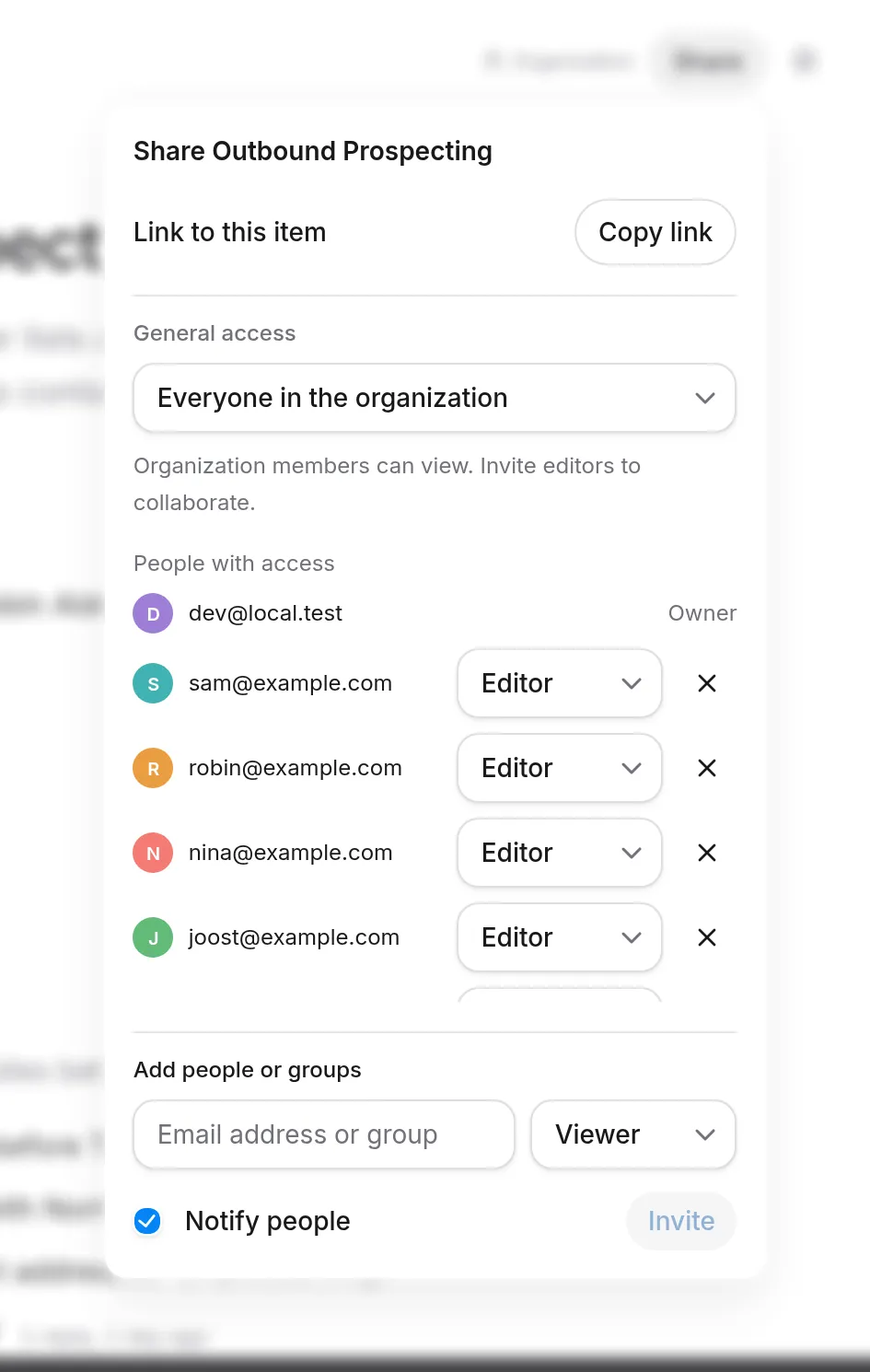
Enter an email address or a group
Type in the field that reads Email address or group. Matching people and groups from your organization appear as you type. Pick a group and everyone in it gets the same role.
Choose the role
Choose Viewer, Editor or Admin from the picker beside the field. The roles are described below.
Choose whether to notify, then invite
Tick Notify people to let them know they’ve been invited, or clear it to add them without telling them. Then press Invite. The button stays disabled until the field has something in it.
Everyone with access is listed under People with access in the same panel, with the owner first. An owner or admin can change anyone’s role there, or remove them.
Roles
| Role | Can do |
|---|---|
| Viewer | Open the project and read its channels, conversations and Library. |
| Editor | Everything a viewer can, plus change the project’s content: channels, instructions, settings such as its name and its agent’s name. |
| Admin | Everything an editor can, plus manage access: invite people, change roles, remove people, and change the project’s general access and its web address. |
The Owner is whoever created the project. The owner is listed first in the panel and has every admin right.
Organization owners and admins
Your organization’s owners and admins are admins on every shared project in it, private projects included, without being invited. They are never admins on anyone’s Tendo. Tendo belongs to one member and nobody else can manage it.
Leave a project
Open Browse Projects, open the ⋯ menu on the project’s card and choose Leave project, then confirm. Leaving removes your own invitation. If you can still reach the project another way, because it is visible to everyone in the organization or a group you are in was invited, you can still open it.
The owner can’t leave their own project.
Troubleshooting
A teammate can see the project but can’t edit anything
The project is visible to everyone in the organization, and that lets people read it but not change it. Invite the teammate through Share with the Editor role.
I can’t find a member list to add someone to
A project has no member list to edit. Access comes from Share invitations, so invite the person through Share.
There is no invite field in the Share panel
Only the owner and admins can invite people or change access. Ask one of them to invite the person, or to give you the Admin role.
I can’t change who can see the project, or its web address
Changing general access or the web address needs the Admin role. Editors can change the other fields under Details.
I can’t leave the project
You own it. The product says: You own this Project, so you cannot leave it. Archive or delete it instead. Both are in project settings under Advanced, then Danger. See Creating a project for what each one does.
Related
- Channels and conversations: channels use the project’s access, and private conversations add their own invitations on top.
- What a project is: what an invited person gets access to.
- Creating a project: choosing Team-visible or Private when you create a project.
- Tendo: your Personal Agent, which is never shared.