Create a project
Name a new project, choose who can see it and which integrations its agent may use, and get a channel, a web address and an agent.
Create a project when a piece of work has its own people, files and accounts, such as a campaign, a client or a product. You set it up in one dialog.
Create the project
Press + next to Projects
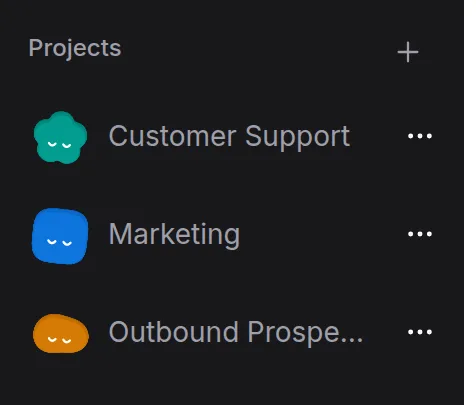
In the sidebar, press + beside the Projects heading. The New project dialog opens.
The New project button on the Browse Projects page, the spots on the workspace home, and Create Project in the command palette (⌘K) open the same dialog.
Fill in the dialog
In the New Project dialog:
- Name is required. Name the area of work rather than a single task, for example Marketing, a client’s name or Spring launch.
- What lands here is optional. Write one line so teammates know what belongs in this project.
- Pick Team-visible or Private. Team-visible is the default and lets everyone in the organization view the project. They can’t edit it until you invite them. Private means only the people you invite can see it.
- If integration chips appear, tick the ones this project’s agent may use. Anything you leave unticked stays off. You can turn integrations on later in the project’s integrations.
As soon as you type a name, the button changes to Create followed by that name.
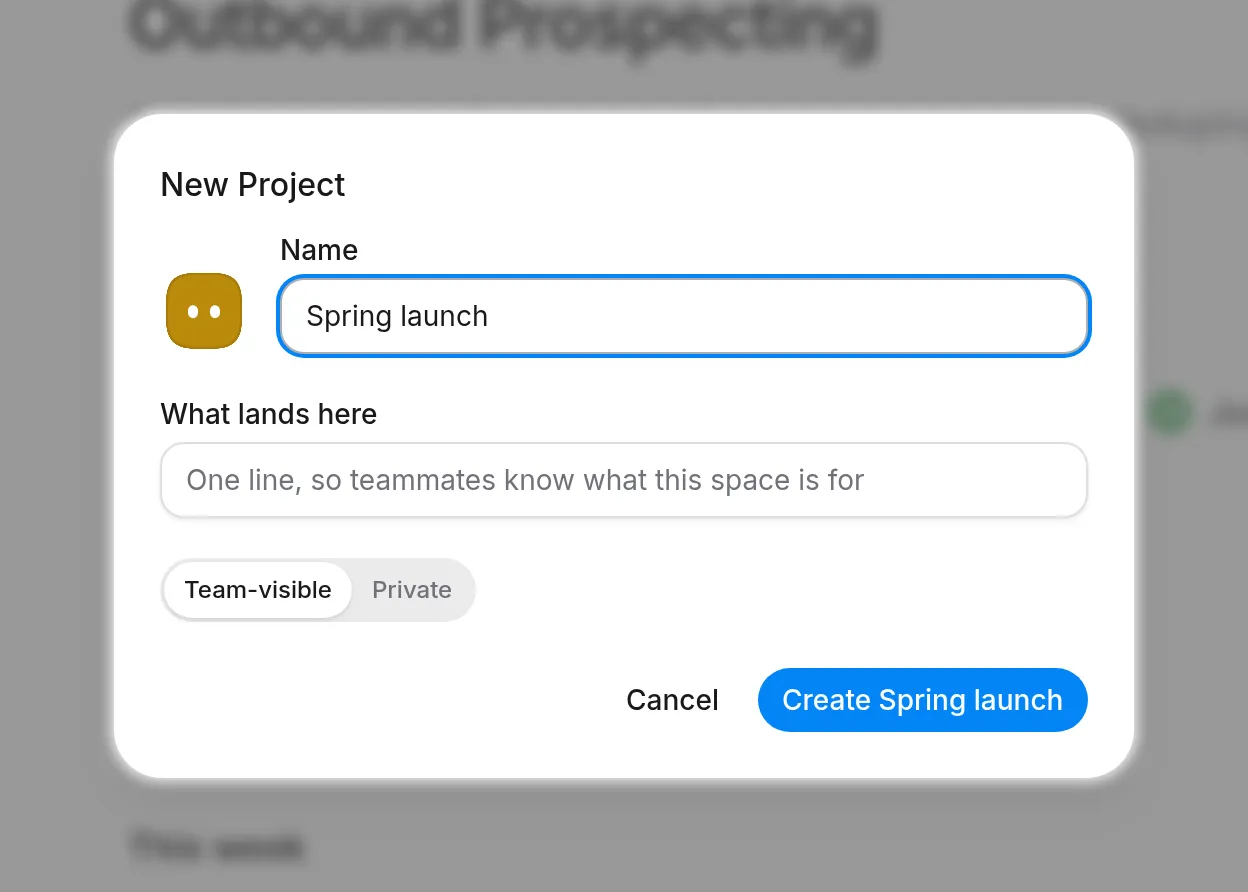
Press Create
Auttendo opens your new project on its home page.
What the dialog tells you while you type
The dialog checks the name as you type and may show a note:
- The name sounds like a single task. The note says the name reads like one piece of work rather than a space, and offers Start it as a conversation. This is only a suggestion. If you still want a project, ignore it and press Create.
- An existing project already covers this. The note names that project and gives you Open it. This is also only a suggestion. You can still create the new project.
Auttendo gives the project the colour its workspace uses least, so two projects in the sidebar rarely look alike. The avatar beside Name shows it. You can’t choose the colour, here or later.
Name the agent
A new project’s agent gets a first name of its own, one no other agent in the workspace is using yet. To change it, open project settings, go to Details, type a name in Agent name and press Update name. This is the name you address in conversations.
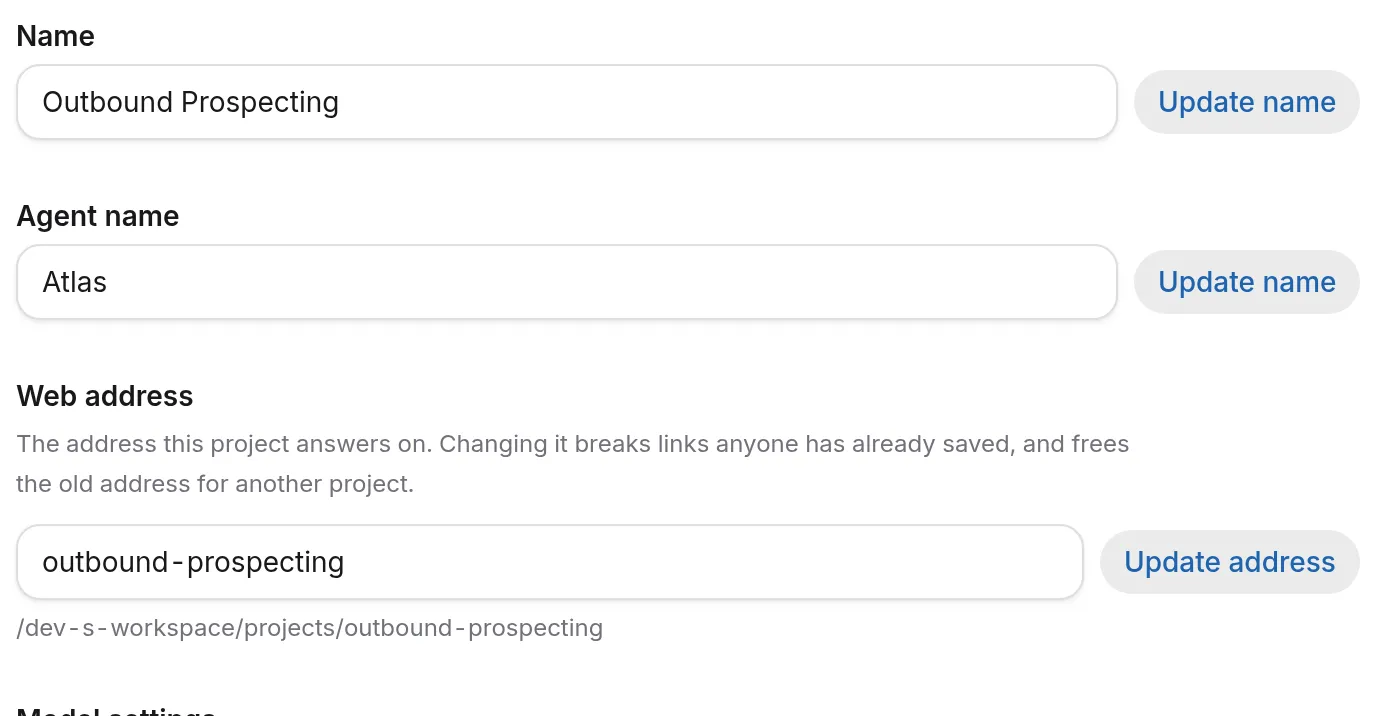
Details also has the project’s web address and the model settings that apply to every future reply in the project.
What you get
A new project comes with:
- A General channel. Open it to start working with the agent, because the home page has no composer. See Channels.
- A web address based on the project’s name. If the address is already taken in your organization, a number is added to the end. Owners and admins can change it in Details, but links people have already saved will stop working.
- Ownership. You’re the project’s owner. To work with other people, invite them through Share. See Share a project.
- The integrations you ticked. Every other integration stays off until you turn it on.
Next, write the project’s instructions: the rules the agent reads on every reply and on every scheduled action the project runs.
Archive, merge or delete a project
These three options are in project settings under Advanced → Danger.
- Merge Projects moves everything in this project into another project and then archives this one. That includes channels, conversations, the Library, skills, integration choices, memory and scheduled actions. People are not moved, so invite anyone who needs the other project through Share. Press Choose destination, pick the project, then press Merge and archive. You can’t undo a merge.
- Archive Project closes the project and every conversation in it. It takes a single press, with no confirmation step. The project disappears from your projects list, and people and other AI features in Auttendo can no longer refer to its conversations. No screen lists archived projects or restores them, so don’t archive a project you may still need.
- Delete Project removes the project and all of its conversations permanently. You confirm by typing the project’s name.
Troubleshooting
The Create button stays grey
Create stays disabled until the Name field has text. Type a name, and the button changes to Create followed by that name.
No integration chips appear in the dialog
The dialog only offers integrations your organization has already connected. If nothing is connected yet, no chips appear. Create the project anyway, connect accounts from Integrations, then turn them on in the project’s integrations.
You got a conversation instead of a project
You probably pressed Start it as a conversation in the note that appears when a name reads like a single task. That button starts a conversation. It doesn’t create a project. To make the project, press + next to Projects again, ignore the note and press Create.
Related
- What a project is: what a project holds and who can see it.
- Channels: add rooms to a project as the work splits up.
- Share a project: invite people and choose their roles.
- Connect an integration: connect an account so projects can use it.